
Notes on Updating from Next Design V3.0 to V3.1
Project files
There are no changes to the file saving format associated with the update from V3.0 to V3.1. Files saved in V3.1 can also be edited in V3.0.
Extensions
The core platform of Next Design is changing from .NET Core 3.1 to .NET 6. Accordingly, if you continue to use extensions developed for V3.0 in V3.1, please take the following actions.
- Migrating extensions to .NET 6
- (Added 23/08/11)Checking APIs whose behavior changes due to processing system dependencies
- (Added 23/08/11)Troubleshooting when migrating to .NET 6
.NET 5 and .NET 6 contain some breaking changes, and if they apply to you, individual adjustments will be necessary.
Additionally, users need to verify the compatibility of any external dependency packages they use.
Support for .NET Core 3.1 has ended. Please consider migrating to .NET 6 to continue receiving support.
(Since the Next Design APIs are compatible between V3.0 and V3.1, and compatibility has also been considered between .NET Core 3.1 and .NET 6, most extensions will work as-is.)
Reference: .NET and .NET Core Support Policy
Migrating extensions to .NET 6
Visual Studio 2022 is required to develop .NET 6-compatible extensions in Visual Studio.
(Targeting .NET 6.0 or later is not supported in Visual Studio 2019.)
Reference: Overview of Version Management for .NET, MSBuild, and Visual Studio
Follow the steps below to migrate extensions developed for V3.0 to .NET 6.
-
Install the .NET 6.0 SDK (both x64 and x86 for Windows). (Click here to download)
-
(Added 23/08/11) If the following warning occurs, change the Sdk setting in the project file (project name.csproj) to [Microsoft.NET.Sdk].
Warning message:
The Microsoft.NET.Sdk.WindowsDesktop SDK is no longer required. Consider changing the SDK property of the root project element to 'Microsoft.NET.Sdk'.Target file: project_name.csproj
Since this cannot be changed from the Visual Studio 2022 property settings, open the target file by clicking it in Visual Studio or by opening and editing it in a text editor.
Example of project settings before modification:
<!--csprojの設定-->
<Project Sdk="Microsoft.NET.Sdk.WindowsDesktop">

</Project>
Example of project settings after modification:
<!--csprojの設定--> <Project Sdk="Microsoft.NET.Sdk"> </Project> -
Open the solution in Visual Studio 2022.
-
Right-click the project in the Solution Explorer and select [Properties] to display the project properties.
-
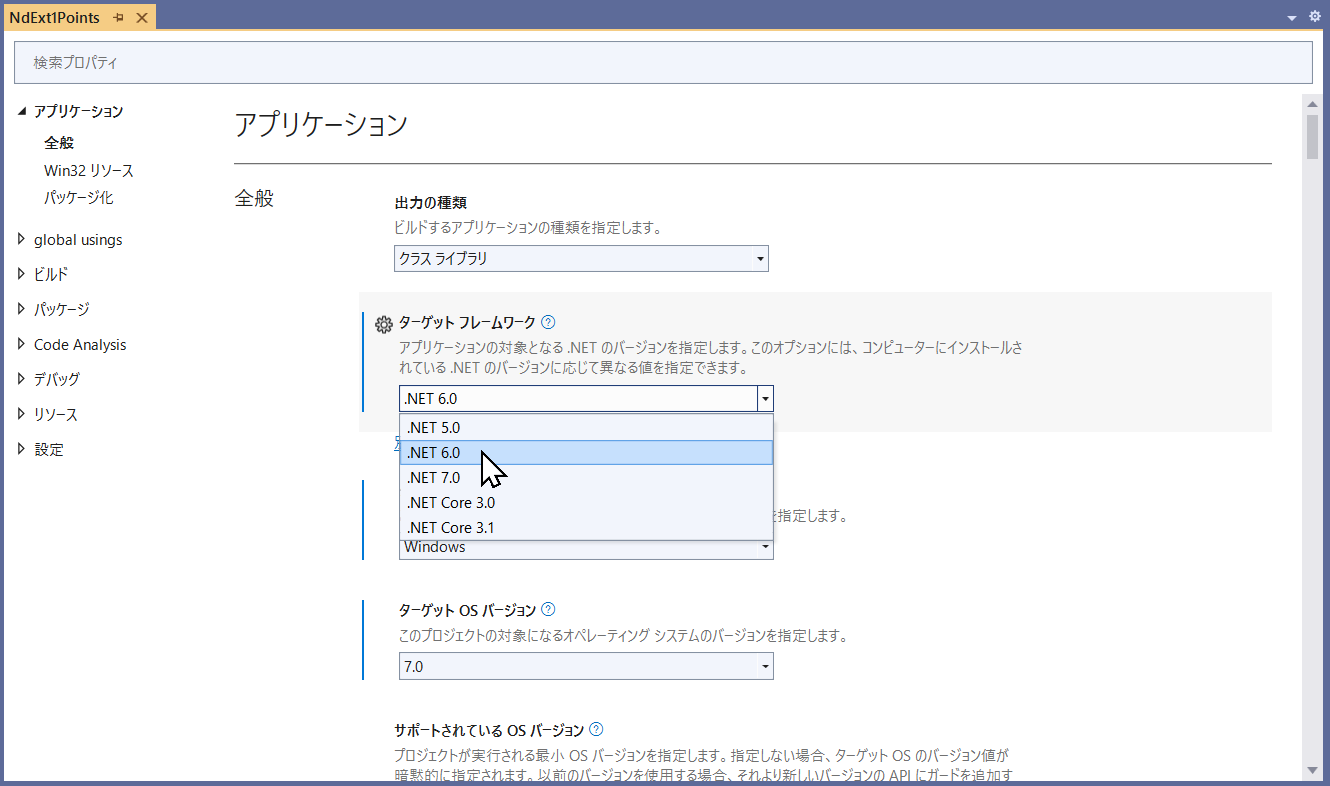
Select [Application > General] from the left navigation, and change the [Target framework] setting to [.NET 6.0].
-
Right-click the project in the Solution Explorer and select [Manage NuGet Packages] to open the NuGet Package Manager.
-
Select the [Installed] tab and update the following packages to the latest stable version compatible with the target version or later.
Target package Supported Versions NextDesign.Desktop 3.1.1.30609 and later NextDesign.Core 3.1.1.30609 and later NextDesign.Desktop.ExtensionPoints 1.1.1.30519 and later 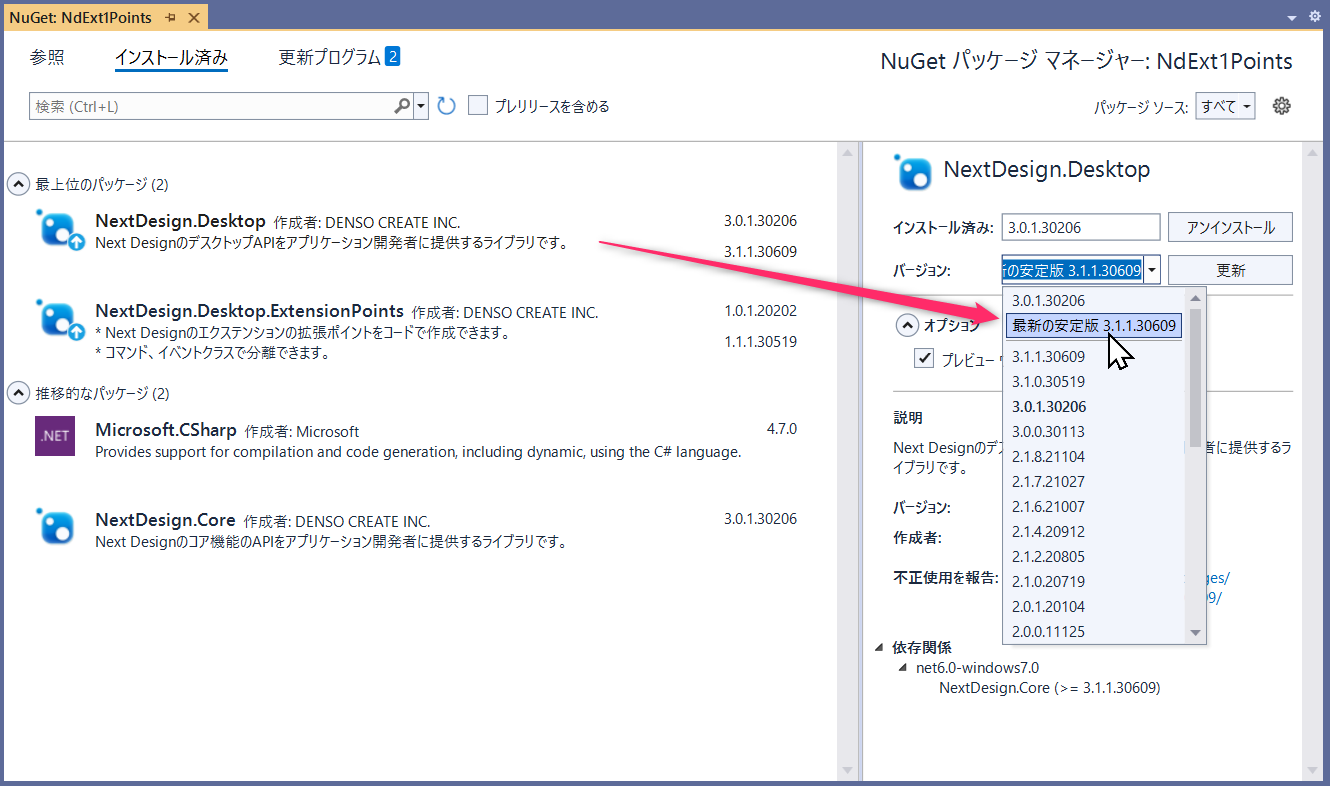
-
Update any other packages you are using to their .NET 6.0-compatible versions.
-
Rebuild the project.
-
Fix any build errors caused by package updates or other changes.
-
Verify that the extension operates correctly.
If the build fails, breaking changes in .NET 5 and .NET 6 may be the cause. Please refer to the following pages and take appropriate action.
Please note that extensions built using the above procedure will not work in V3.0. They are compatible with V3.1 and later.
(Added 23/08/11)Checking APIs whose behavior changes due to processing system dependencies
- IDiagram.GetSelectedShapes
- ISequenceDiagram.GetSelectedShapes
- IEditor.GetSelectedElements
- ITreeGrid.GetSelectedNodes
- IGrid.GetSelectedRows
- IForm.GetSelectedControls
- IProduct.SelectedFeatures
- INavigator.SelectedItems
- ITracePage.SelectedNodes
- IEditorView.SelectedModels
Due to changes in the processing architecture (.NET Core 3.1 ⇒ .NET 6), the behavior of the API used to retrieve selected models has changed.
◆V3.0 (.NET Core 3.1):
When multiple models are selected, in most cases, the models are stored in the order they were selected.
◆V3.1 (.NET 6):
When multiple models are selected, the order in which the models are stored becomes arbitrary.
(There is no dependency on the selection order)
This may affect implementations of extensions that rely on the order of retrieved models.
Please check whether this change has any impact, and review your implementation if necessary.
The APIs affected by this change are listed below:
Namespace: NextDesign.Core
Namespace: NextDesign.Desktop
(Added 23/08/11)Troubleshooting when migrating to .NET 6
-
As reference information, we share the issues and solutions encountered by the Next Design development team during the .NET 6 migration.
- Please refer to Troubleshooting .NET 6 Migration.