
Next Design V5.1 Service Update 1 (5.1.10.11123) Release Notes
This service update adds the ability to import and export design model information in YAML format, making it easier to edit models using external tools such as AI. In addition, we have enhanced ReqIF import and product line functionality, enabling you to maintain a history and traceability of requirement changes and manage product variations with greater flexibility. Furthermore, we have fixed several issues related to partial loading and diff comparison functions. As a result, we have expanded the scope of design information utilization while improving stability and usability in daily operations.
Table of Contents
- New Features and Improvements
- Fixed Issues and Limitations
- Important Notes Regarding the V5.1 Service Update 1
- Update Method
New Features and Improvements
Import and export design model information in YAML format. Enables AI-powered model editing.
You can now import and export Next Design model information in YAML format. This makes it easier to edit design information using AI or external tools and then import the results back into Next Design.
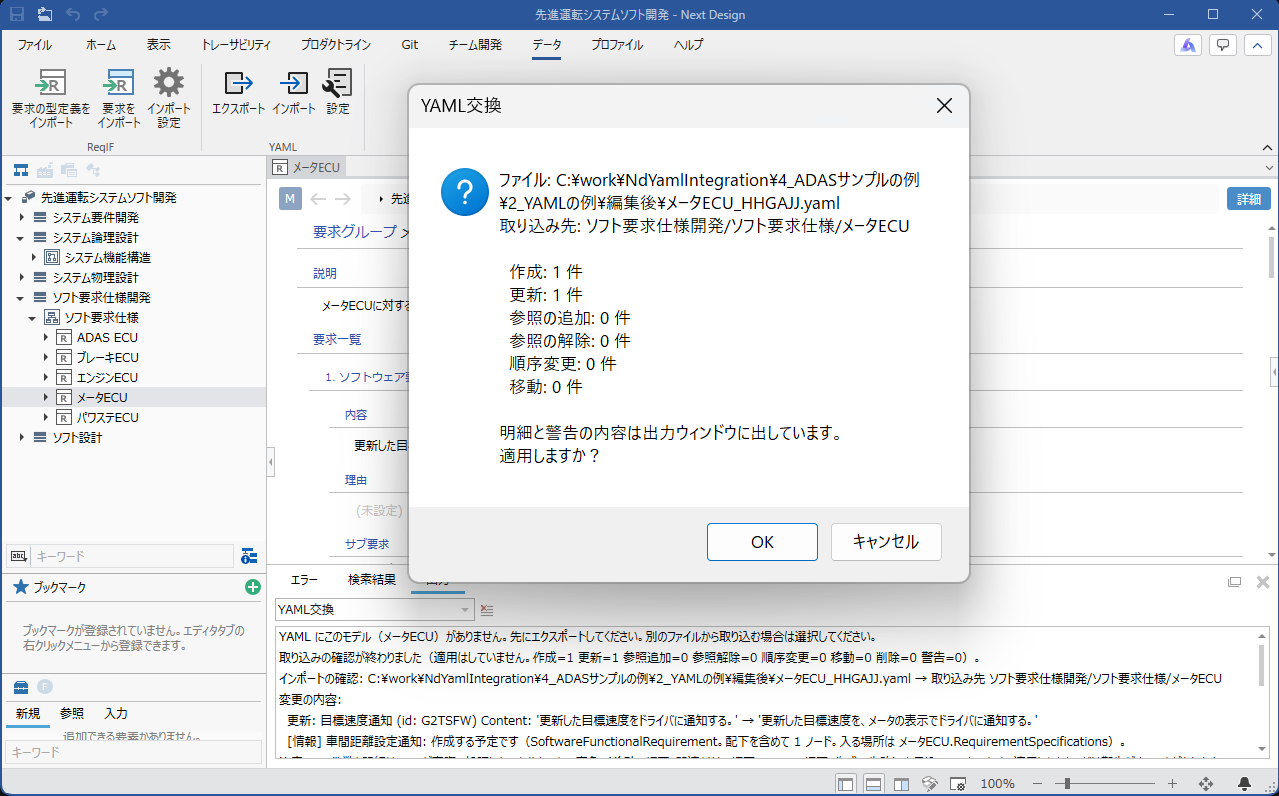
- You can export design model information in YAML format and edit it using AI or external tools.
- You can import the edited YAML file into Next Design and apply it to the design model.
- Since you can review the changes before importing them, you can leverage AI while preventing unintended model changes.
- We are releasing a file that defines the rules for describing Next Design model information in YAML format. By loading this file into an AI tool, you can reduce the number of tokens passed to the AI by approximately 70%.
- This feature will be released in two formats: an extension and a command-line tool. The command-line tool allows you to perform input/output operations and validation from the command line without launching Next Design. It can be used for batch processing and for checking the consistency of models and YAML files shared via Git.
Requirements deleted from ReqIF also retain their history and traceability
When importing ReqIF files, models corresponding to requirements that have been deleted from the ReqIF-formatted file are now retained rather than deleted. You can verify this by checking the model name or dedicated fields. (This is referred to as “logical deletion.”) This makes it easier to manage requirements while retaining their deletion history, related design information, and traceability information. ReqIF is a mechanism that outputs a snapshot at a specific point in time and, by standard specification, does not include a deletion flag. Consequently, it may not always be possible to strictly distinguish whether a requirement that no longer exists in the ReqIF file has been “deleted” or is simply “not included in the current output.” With this improvement, we have implemented support for the logical deletion of requirements in a way that is easy to manage in practice, while taking this premise into account.
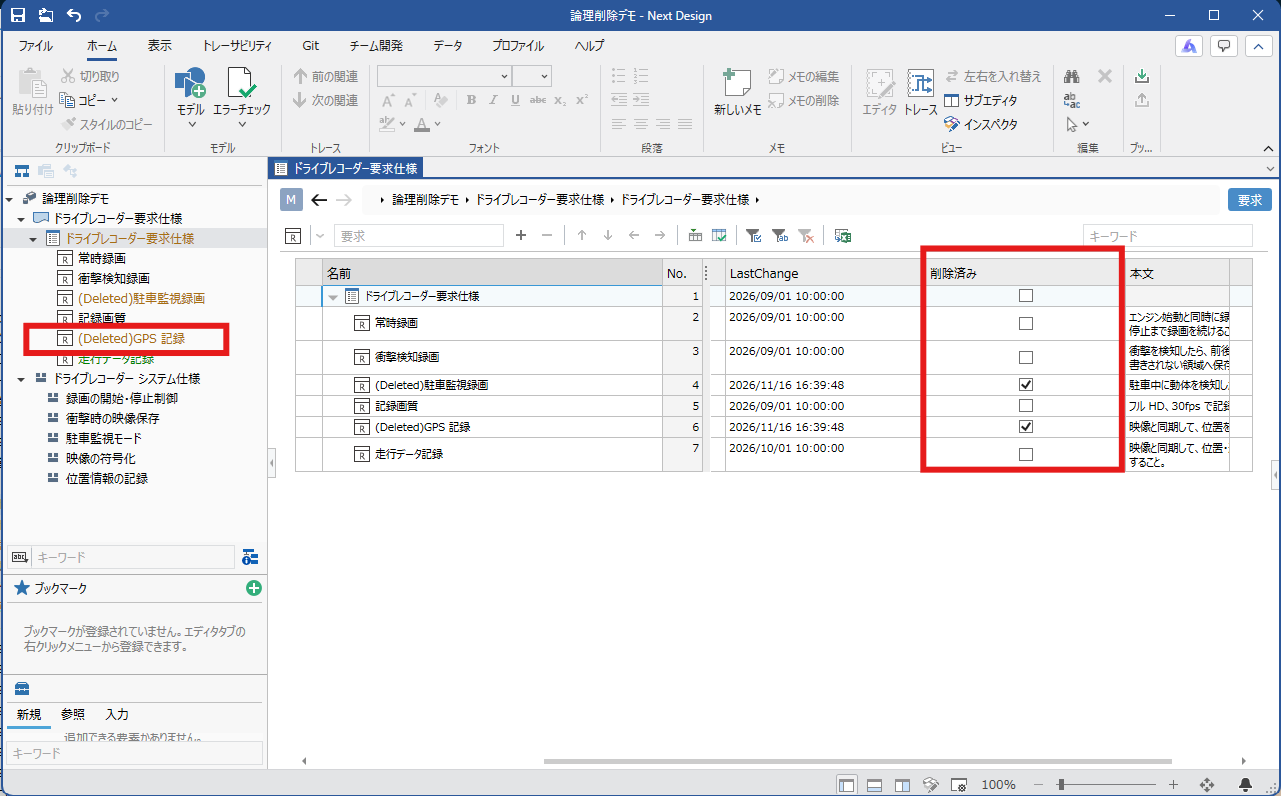
- It is now possible to import models corresponding to deleted requests from ReqIF-format files as logically deleted.
- You can manage them while retaining the design and trace information related to the requirements.
- This makes it easier to track the history of requirement changes and to use that information for reviews and impact assessments.
- As before, you can also delete models during import. You can change the behavior during import in the import settings.
- Previously, if a model that could not be specified as an import destination was selected, the import process would be interrupted. With this improvement, the import can now continue without interruption, even if the necessary preparations for the import are not yet complete.
Not only the model, but also the "related" options can now be switched depending on the product variation.
The Product Line feature now allows you to assign features to relationships between models. This enables you to enable or disable not only the models but also their relationships, depending on the product variation. Disabled relationships can be displayed in a lighter shade or hidden on the diagram, making it clear at a glance that they are disabled.
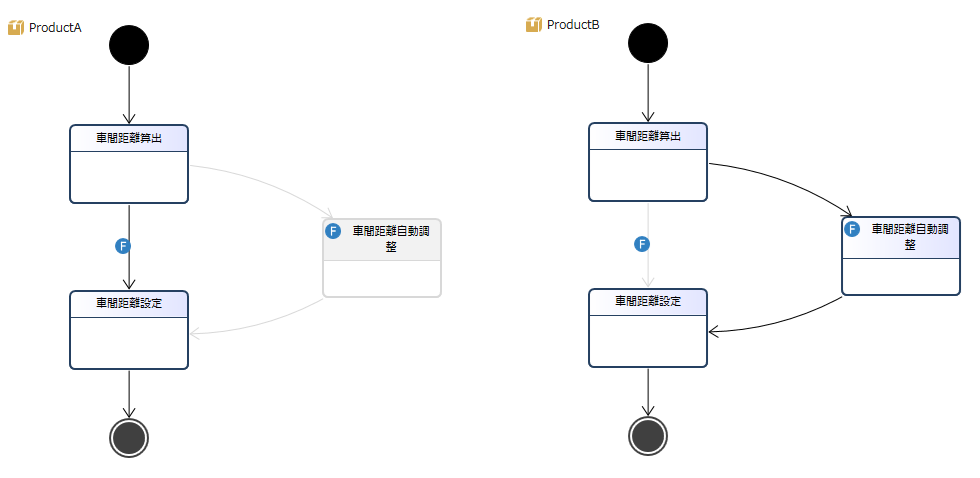
- When a reference relationship is invalid, the element at the related end is now displayed as invalid.
- If a derivation relationship is invalid, it is now displayed as invalid in the view that shows trace relationships.
- The invalid status of field values based on invalid relationships is now reflected in the product difference view.
- The model's error checking now verifies inconsistencies in related feature condition expressions.
Other Improvements
- We have updated the NDCLI and NDMerge installers to support the .NET runtime version update.
Fixed Issues and Limitations
This version includes fixes for issues and constraints, allowing you to use the application with more stable quality. Please check the following page for details on the fixed issues and constraints.
Important Notes Regarding the V5.1 Service Update 1 Update
Here are some important points to note regarding the update from V5.1 to V5.1 Service Update 1.
Extensions
Since V5.1 Service Update 1 does not include any API removals or consolidations, extensions developed for V5.1 will generally continue to function as is.
However, due to performance improvements related to model file loading, the return values, the conditions under which exceptions are thrown, and the conditions and timing of event occurrence have changed for some APIs. For details on these changes, please refer to the following manual.
Extended Contents
ReqIFIntegrationIf you have any projects imported from a previous version (v1.0.3), open the relevant project and select "Import Requirement Type Definitions." The data version will be updated automatically. Once the data version has been updated, you will no longer be able to import requirements using v1.0.3 or earlier.
Update Method
Update
From the Next Design menu, select [Help] > [Check for Updates].
Perform a new installation
If you are performing a new installation, please download the installer from the following link. When accessing, please enter your DENSO CREATE account starting with "A" and its password, which has been provided to registered users.
That is all.