
Important notes on developing extensions for Next Design V5.0
Summary
If you are developing extensions for V5.0 in order to continue using V5.0 without updating to V5.1, you will need to change the settings of your extension development project.
(No changes are necessary if you are using a pre-built extension.)
Target
You need to change the settings in either of the following cases.
- Create a project using the following Visual Studio project template
- Next Design Extension project template
- Next Design Extension (Extension Points) project template
- Creating projects using NDExt commands
Symptom
Projects created using the method described above are configured to use the latest version of the extension development package.
With the update to V5.1, the latest version of the extension development package will also be updated to the V5.1 package.
Therefore, when building extensions for V5.0, you need to change the settings to use a V5.0 compatible version as the extension development package.
If you build without changing the settings, the latest V5.1 package will be used. If you install that extension and launch Next Design V5.0, the following error message will be displayed and the extension will not work.
Failed to activate extension "........" (Unable to load one or more of the requested types. Could not load file or assembly 'NextDesign.Desktop, Version=5.1.x.xxxxx, Culture=neutral, PublicKeyToken=null'. The specified file was not found.)
Solution
To avoid the above error, please update the extension development project settings as follows.
Specify Version for Used Package
For the following packages used in the extension development project, please explicitly specify the version to use the V5.0 compatible version.
| Used Package | V5.0 Compatible Version |
|---|---|
| NextDesign.Desktop | 5.0.2.10512 |
| NextDesign.Core | 5.0.1.10422 |
| NextDesign.Desktop.ExtensionPoints (*) | 1.2.3.10306 |
(*) Not required if you are not using the ExtensionPoints library.
Follow the steps below to change settings in Visual Studio.
- Open the solution in Visual Studio.
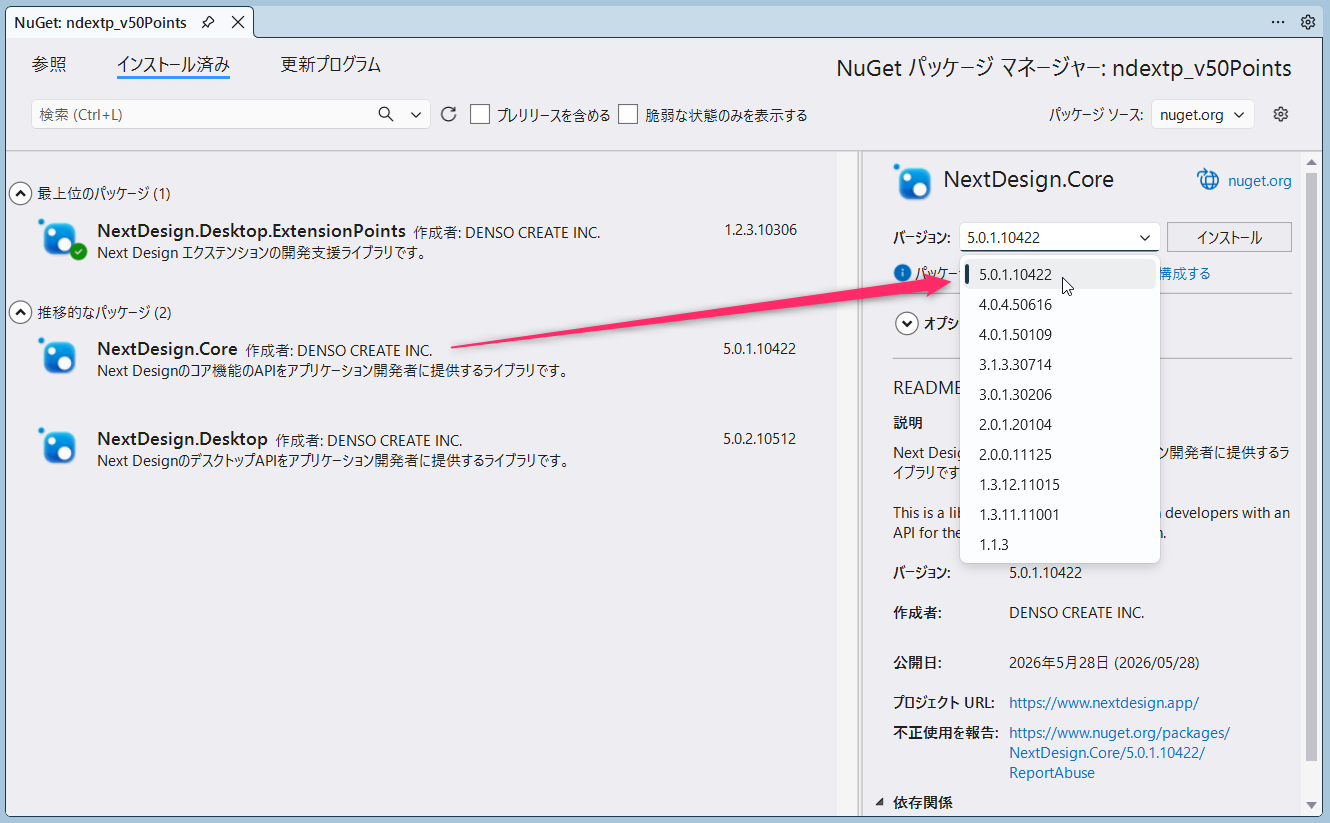
- Right-click the project in the Solution Explorer and select [Manage NuGet Packages] to open the NuGet Package Manager.
- Select the [Installed] tab, specify the above version for the corresponding package, and click the [Update] button.
- Run the build and verify that it succeeds.
Supplementary Notes
Extensions with the above configuration changes will work in both V5.0 and V5.1.
That is all.